


See it on your phone
Connect Bubbl's free Showcase app to your workspace in about a minute, and watch your campaigns on a real phone, on any plan.
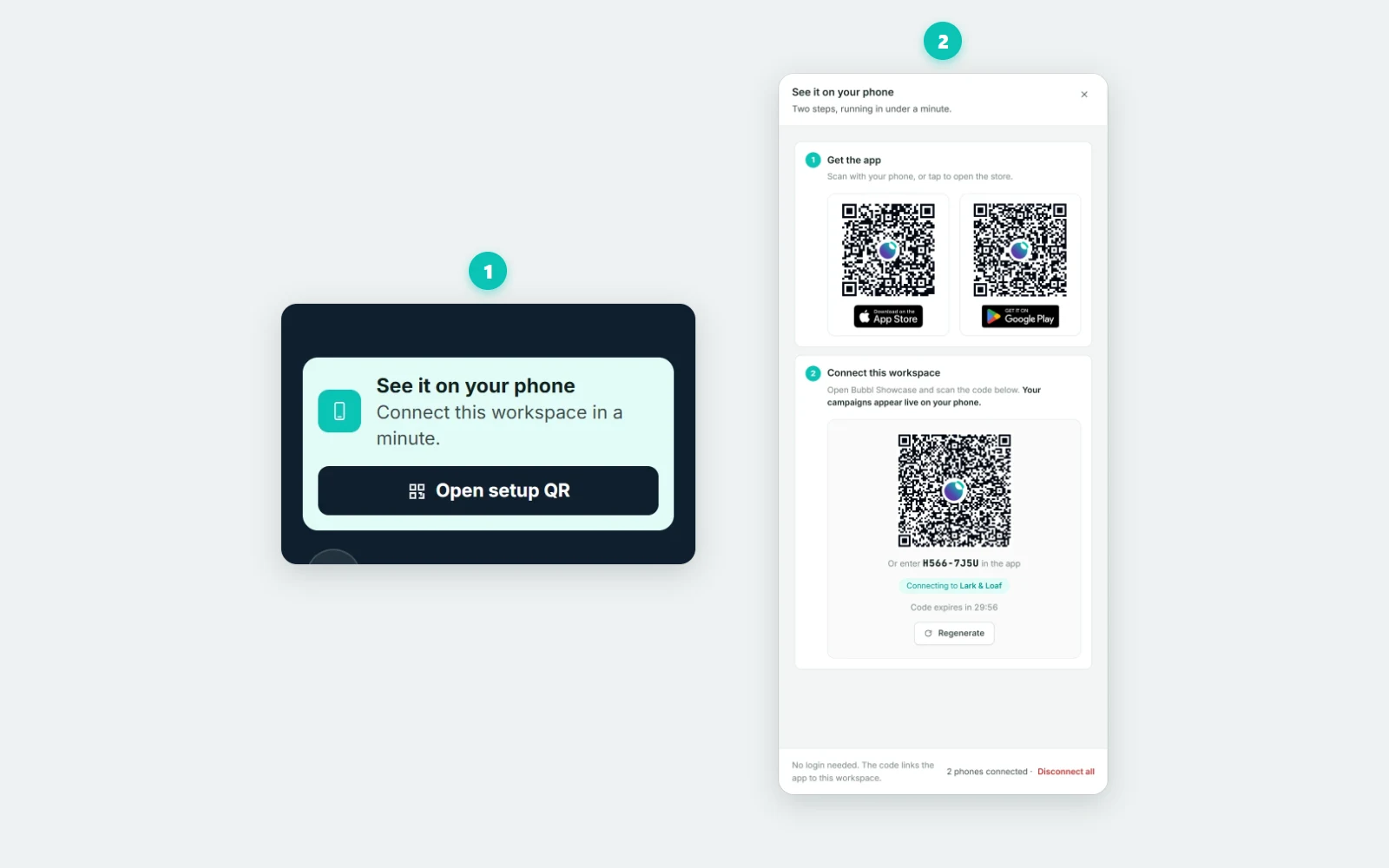
Bubbl Showcase is Bubbl's free demo app. Connect it to your workspace and it shows that workspace's campaigns on a real phone, so you can see what your customers will see before your own app is ready. It works on every plan, including Free, it needs no login, and phones connected this way aren't billed.
It isn't your own app: your own app needs a paid plan. See Free plan and going live.
Connect a phone#
- 1Open See it on your phoneOn the Free plan, click Open setup QR in the See it on your phone card at the bottom of the sidebar. On a paid plan it's in the account menu, under your name. Any team member can connect a phone.
- 2Get the appIn the drawer, under Get the app, scan the App Store or Google Play code with your phone, or tap a badge if the dashboard is open on the phone itself. The app is called Bubbl Showcase.
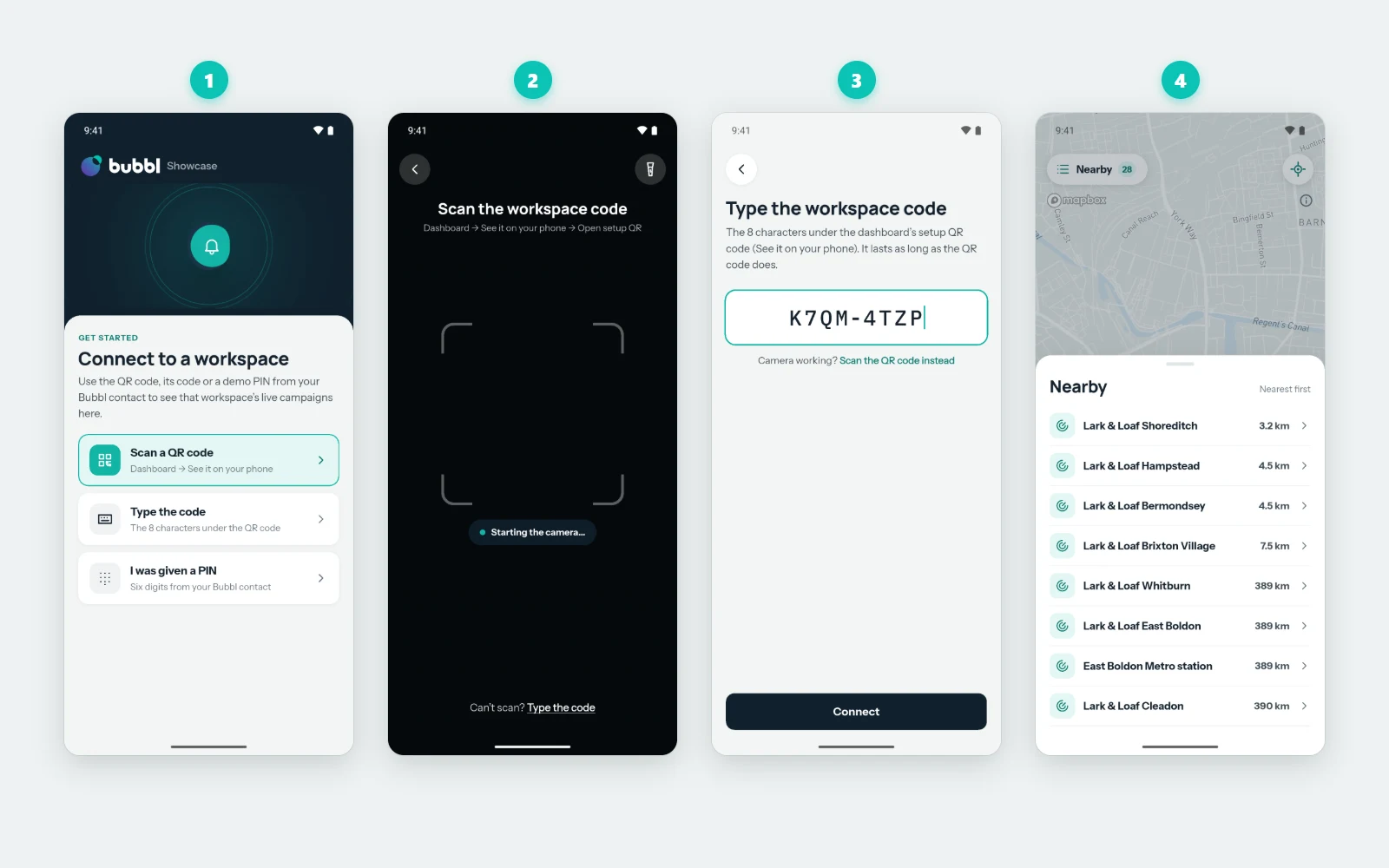
- 3Connect the workspaceOpen Bubbl Showcase. On Connect to a workspace, choose Scan a QR code and point the camera at the code under Connect this workspace. If you can't scan it, choose Type the code and enter the 8 characters shown under the QR code, such as
K7QM-4TZP. Capital letters, spaces and dashes don't matter. If a Bubbl contact gave you a six-digit demo PIN, choose I was given a PIN and enter that instead. - 4Allow notifications and locationAfter it connects, the app asks for three things in turn: to send notifications, to use your location while you use the app, and to use it in the background, so it can watch your campaigns' areas with the app closed. Each step has a Not now option, but the app can only watch the areas with location allowed.
- 5See your campaignsThe app opens on its Map tab. The bottom bar has Map, Notifications, Events and Settings.
What the app shows#
Once connected, your campaigns appear live on your phone. The app shows:
- Nearby: the areas around where the phone is, nearest first, with their distance, for campaigns that are running or that start within the next 30 days. The card at the bottom of the map names your workspace and how many campaign areas are nearby and how many are upcoming.
- Notifications: your workspace's notifications, the 100 latest, newest first, as previews.
The app reads from your workspace and doesn't change anything in it.
About the connect code#
- The code lasts 30 minutes. The drawer counts it down under the code ("Code expires in …"). Click Regenerate for a new one.
- A new code replaces the old one. Opening the drawer makes a new code too, so a code left open on another computer stops working.
- The code is only for connecting a phone, and it needs no login, so anyone who has it during those 30 minutes can connect. Don't share a screenshot of it.
Disconnect phones#
The drawer's footer shows how many phones are connected, such as 2 phones connected. Owners and admins can click Disconnect all to sign every connected phone out of the workspace. A phone can connect again with a new code.
On the phone, open Settings and choose Disconnect this phone, then Disconnect to confirm. Bubbl stops on that phone and it forgets your workspace, along with the segments set in the app. To use it again, connect it with a QR code, its code or a PIN.
If it doesn't connect#
| What the app says | What to do |
|---|---|
| This code is invalid or has expired. Generate a new one from the dashboard. | The code is older than 30 minutes, or a newer code replaced it. Open See it on your phone again, or click Regenerate, and use the new code. |
| That doesn't look like a Bubbl code. Check it and try again. | You scanned or typed something else. Use the code under Connect this workspace, not the App Store or Google Play codes. |
| Couldn't reach Bubbl. Check your connection and try again. | The phone is offline. Check its connection and try again. |
| Bubbl took too long to answer. Check your connection and try again. | The connection is slow. Try again, or switch between Wi-Fi and mobile data. |
If the app connects but shows nothing, check the workspace has a campaign that's active or starts within 30 days, and that the phone is near one of its locations.