


Push (Firebase and Apple Push)
Upload your Firebase service account for Android and each iOS app's APNs auth key, so Bubbl can send push notifications to your app.
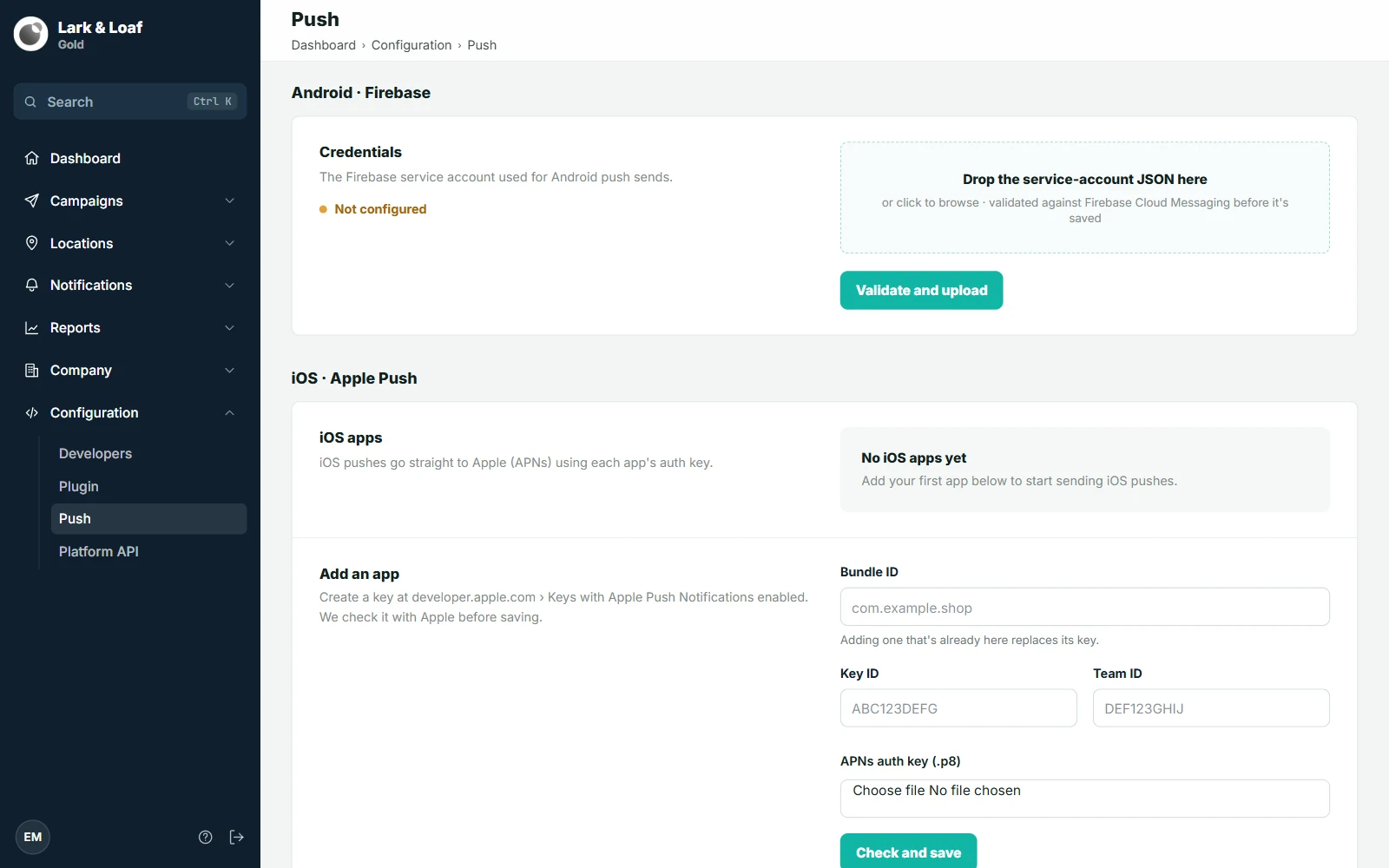
Go to Configuration › Push. Owners, admins and developers can open it. It needs a paid plan: on the Free plan Push is greyed out in the sidebar and the page shows "Upgrade your plan to use your own app".
The page has two sections. Android · Firebase holds your Firebase project, which Bubbl sends Android pushes through. iOS · Apple Push holds your iOS apps' keys, which Bubbl uses to send iOS pushes straight to Apple (APNs), without Firebase.
Android · Firebase#
- 1Download the key from FirebaseIn the Firebase console, create a service-account key for your project and download its JSON file.
- 2Drop it on the pageUnder Credentials, drop the file on Drop the service-account JSON here, or click to choose it.
- 3Validate and uploadClick Validate and upload and confirm it's you. Bubbl checks the key with Firebase before saving it, then shows the Project, Account and when it was Updated.
To remove the key, click Delete credentials and type the project ID to confirm. Push campaigns stop sending to Android until new credentials are uploaded.
Android apps (optional)#
Once a key is on file, Android apps appears. Drop your project's google-services.json there (from Firebase › Project settings › Your apps; it must be the same project as the key) and click Check and save. Your Android apps then don't need to include the file: the Bubbl SDK sets up Firebase for them. Remove takes it off again; apps without their own google-services.json then stop receiving push.
iOS · Apple Push#
- 1Create a key at AppleAt developer.apple.com › Keys, create a key with Apple Push Notifications enabled and download the
.p8file. Note its Key ID and your Team ID. - 2Enter the app's detailsUnder Add an app, enter the app's Bundle ID, the Key ID and the Team ID.
- 3Attach the keyChoose the file under APNs auth key (.p8).
- 4Check and saveClick Check and save and confirm it's you. Bubbl checks the key with Apple before saving it.
The app then appears under iOS apps with its key, team and when it was updated. Adding a Bundle ID that's already there replaces its key. Remove takes an app's key off; its iOS devices get no pushes until a key is uploaded again.
.p8 for each Bundle ID in your team.Check that pushes arrive#
This page doesn't send a test push. To check that pushes reach a phone, see Check that pushes arrive.
For the app side, see Push notifications and Dashboard setup.